Unlock a Bigger Screen: How to Use Your TV as a PC Monitor
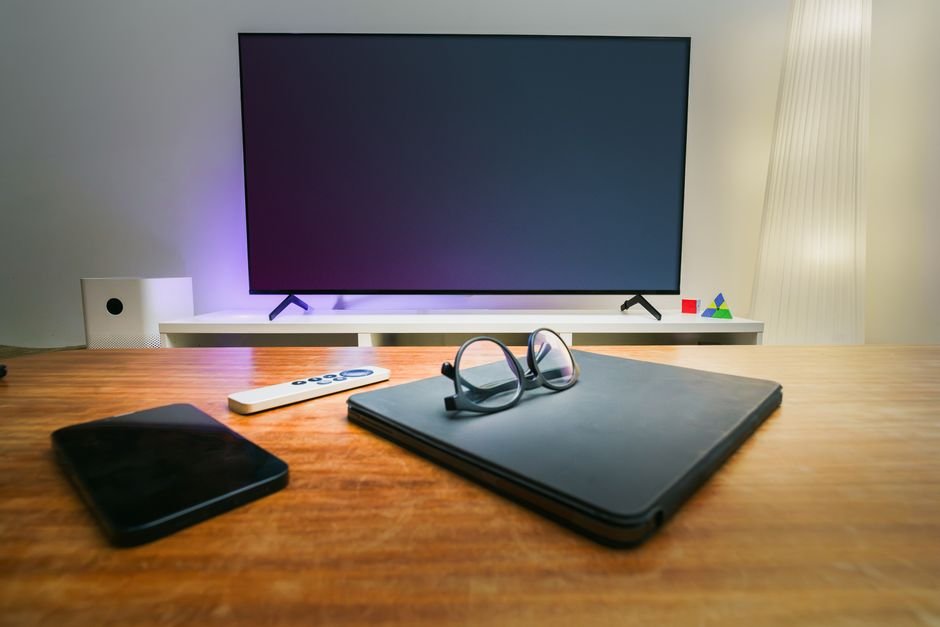
At a glance, Ever wished for a larger screen for your computer without having to buy a brand new monitor? Good news – your existing television can often double as a fantastic display for your Mac, Windows, or Linux machine. This guide will show you how to set up your TV as a computer monitor, breathing new life into older screens and offering an expansive view for work, gaming, or entertainment, often using equipment you already have.
Table of Contents
- Unlock a Bigger Screen: How to Use Your TV as a PC Monitor
- Expert Perspective
- Frequently Asked Questions
- Why Use Your TV as a Computer Monitor?
- What You’ll Need
- Step-by-Step Guide: Connecting Your TV to Your Computer
- Tips for the Best Experience
- Potential Downsides to Consider
- Why is TV as Computer Monitor important?
- What impact could TV as Computer Monitor have?
- What should readers watch next with TV as Computer Monitor?
- How does this relate to computer?
- Conclusion
Why Use Your TV as a Computer Monitor?
There are several compelling reasons to connect your computer to your television:
- Cost-Effective: Instead of purchasing a new dedicated monitor, you can utilize a display you already own, saving money.
- Larger Display: TVs typically offer much larger screen sizes than standard computer monitors, providing more screen real estate for multitasking or an immersive viewing experience.
- Ideal for Media & Gaming: Enjoy movies, TV shows, and casual gaming on a grand scale, perfect for living room setups.
- Revive Old TVs: Give an older television a new purpose as a secondary display or a dedicated media PC screen.
What You’ll Need
Before you begin, gather a few essential items:
- A Television: Most modern TVs (and many older ones) have the necessary input ports.
- A Computer: Your desktop or laptop (Mac, Windows, or Linux).
- A Compatible Cable: The most common and recommended is an HDMI cable. Other options include DisplayPort, DVI, or VGA, depending on your computer and TV’s available ports.
- Optional Adapters: If your computer’s output doesn’t match your TV’s input (e.g., a laptop with only USB-C and a TV with HDMI), you’ll need an adapter (e.g., USB-C to HDMI).
Step-by-Step Guide: Connecting Your TV to Your Computer
Step 1: Connect Your Devices
In practical terms, This is the most straightforward part. Ensure both your television and computer are powered off before making any connections.
- Locate the appropriate output port on your computer (most commonly HDMI).
- Find an available input port on your TV (usually labeled HDMI 1, HDMI 2, etc.).
- Connect one end of your chosen cable (e.g., HDMI) to your computer and the other end to your TV. Make a note of which HDMI input number you’ve used on the TV.
- Turn on your television and use its remote to select the correct input source (e.g., HDMI 1).
- Finally, power on your computer. Your computer should automatically detect the TV as an external display.
Step 2: Configure Display Settings on Your Computer
Once connected, you’ll need to tell your computer how to use the new display.
- For Windows: Right-click on your desktop and select “Display settings.” Here, you can:
- Select “Detect” if your TV isn’t immediately recognized.
- Under “Multiple displays,” choose how you want to use the TV: “Duplicate these displays” (shows the same content on both screens) or “Extend these displays” (gives you more desktop space).
- Adjust the resolution to match your TV’s native resolution for the sharpest image (e.g., 1920×1080 for Full HD, 3840×2160 for 4K).
- Adjust text scaling if icons and text appear too small or too large.
- For Mac: Go to “System Settings” (or “System Preferences” on older macOS versions) > “Displays.” Here, you can:
- Arrange your displays if you’re extending them.
- Set the resolution and refresh rate.
- Choose between “Mirror Displays” (duplicate) or using the TV as a separate workspace.
- For Linux: Most desktop environments (GNOME, KDE Plasma, XFCE) have a “Display” or “Monitor” settings panel similar to Windows and Mac. For command-line users, xrandr is a powerful tool for configuration.
Step 3: Optimize Your TV Settings for PC Use
For example, Televisions are designed primarily for video content, not computer interfaces. Adjusting a few settings on your TV can significantly improve the experience:
- Picture Mode: Look for a “PC Mode,” “Game Mode,” or similar setting in your TV’s picture options. These modes often reduce input lag and disable unnecessary post-processing that can make text look blurry.
- Sharpness: Reduce the sharpness setting on your TV. While it might seem counterintuitive, high sharpness settings on TVs can introduce artificial halos around text, making it harder to read.
- Aspect Ratio: Ensure the TV is set to display the full image, often labeled “Just Scan,” “Screen Fit,” or “1:1 pixel mapping,” to avoid cropped edges or overscan.
Tips for the Best Experience
- Distance: Sit at an appropriate distance from your TV. Text on a large TV can look less sharp than on a dedicated monitor due to lower pixel density.
- Audio: By default, audio will likely route through your TV’s speakers. You can change this in your computer’s sound settings if you prefer external speakers or headphones.
- Wireless Peripherals: For a comfortable living room setup, consider using a wireless keyboard and mouse.
- Refresh Rate: While most TVs support 60Hz, some newer models offer higher refresh rates. Ensure your computer’s display settings are sending the highest supported refresh rate for smoother motion.
Potential Downsides to Consider
- Pixel Density: TVs generally have lower pixel density than monitors, meaning text might not be as crisp, especially on larger screens or when sitting close.
- Input Lag: While “Game Mode” helps, some TVs still have higher input lag than dedicated gaming monitors, which can affect fast-paced gaming.
- Burn-in (OLED): If you have an OLED TV, displaying static computer elements (like taskbars or desktop icons) for very long periods *could* theoretically lead to burn-in, though modern OLEDs are much more resistant.
Expert Perspective
A practical read on TV as Computer Monitor starts with computer. That is where the earliest effects are likely to show up if this development keeps building.
What happens next will come down to adoption speed, policy response, and execution quality. That combination could make TV as Computer Monitor a meaningful reference point across display.
For decision-makers, the useful lens is not the headline alone but how hdmi changes priorities once organizations have to respond.
Frequently Asked Questions
Why is TV as Computer Monitor important?
Unlock a Bigger Screen: How to Use Your TV as a PC MonitorAt a glance, Ever wished for a larger screen for your computer without having to buy a brand new monitor?
What impact could TV as Computer Monitor have?
Good news – your existing television can often double as a fantastic display for your Mac, Windows, or Linux machine.
What should readers watch next with TV as Computer Monitor?
This guide will show you how to set up your TV as a computer monitor, breathing new life into older screens and offering an expansive view for work, gaming, or entertainment, often using equipment you already have.Why Use Your TV as a Computer Monitor?There are several compelling reasons to connect your computer to your television:Cost-Effective: Instead of purchasing a new dedicated monitor, you can utilize a display you already own, saving money.Larger Display: TVs typically offer much larger screen sizes than standard computer monitors, providing more screen real estate for multitasking or an immersive viewing experience.Ideal for Media & Gaming: Enjoy movies, TV shows, and casual gaming on a grand scale, perfect for living room setups.Revive Old TVs: Give an older television a new purpose as a secondary display or a dedicated media PC screen.What You’ll NeedBefore you begin, gather a few essential items:A Television: Most modern TVs (and many older ones) have the necessary input ports.A Computer: Your desktop or laptop (Mac, Windows, or Linux).A Compatible Cable: The most common and recommended is an HDMI cable.
How does this relate to computer?
It connects because the article frames computer as one of the clearest areas where the topic may be felt in practice.
Conclusion
What matters next is how the immediate response turns into lasting change. Turning your TV into a computer monitor is a straightforward and rewarding project. Whether you’re looking for an expansive workspace, a dedicated media center, or just want to give an old television a new purpose, this guide provides the foundation to get started. Enjoy the big screen experience and the versatility it brings to your digital life!
Source: https://www.zdnet.com/article/how-to-use-your-tv-as-a-computer-monitor/