Frustrated with Android Auto Not Connecting? Let’s Get You Back on Track!
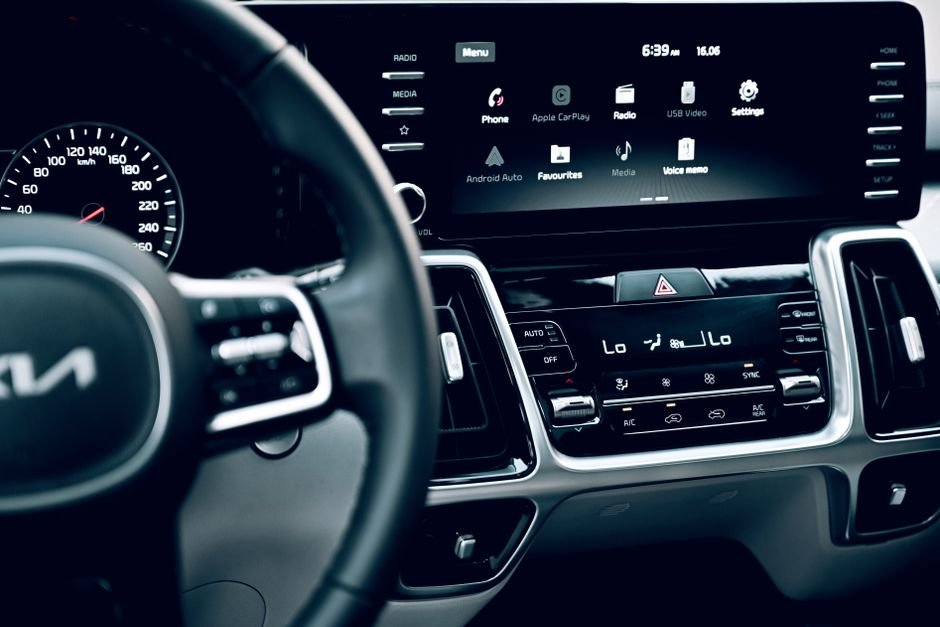
For readers tracking the shift, Android Auto seamlessly integrates your phone with your car’s infotainment system, providing navigation, music, and communication right on your dashboard. It’s incredibly convenient… until it suddenly stops working.
Table of Contents
- Frustrated with Android Auto Not Connecting? Let’s Get You Back on Track!
- Expert Perspective
- Frequently Asked Questions
- 1. The Often-Overlooked Hero: Your USB Cable
- 2. Basic Checks: Restart and Reconnect
- 3. Dive into Your Phone’s Settings
- 4. Clear Cache and Data for Android Auto
- 5. Consider Your Car’s Compatibility and Firmware
- Still Having Trouble?
- Why is Android Auto troubleshooting important?
- What impact could Android Auto troubleshooting have?
- What should readers watch next with Android Auto troubleshooting?
- How does this relate to android?
When your screen remains stubbornly blank or connections drop, it can be incredibly frustrating. The good news is that most issues are simple connection problems that you can troubleshoot yourself. Let’s dive into the most common culprits and how to fix them.
1. The Often-Overlooked Hero: Your USB Cable
Meanwhile, Believe it or not, a faulty or incompatible USB cable is the single most common reason why Android Auto fails to connect or disconnects randomly. Not all cables are created equal!
- Quality Matters: Avoid cheap, generic cables. Invest in a high-quality, data-transfer-capable USB cable from a reputable brand (like the one that came with your phone). Charging-only cables simply won’t work.
- Check for Damage: Inspect your cable for any signs of wear and tear, bends, or fraying, especially near the connectors. Even minor damage can disrupt data flow.
- Length: While not always an issue, excessively long cables can sometimes lead to signal degradation. Opt for a shorter, high-quality cable if possible.
- Try a Different Cable: Always have a spare, known-good cable on hand for testing. This is often the quickest way to diagnose the problem.
2. Basic Checks: Restart and Reconnect
Sometimes, the simplest solutions are the most effective. Don’t underestimate the power of a good old-fashioned restart.
- Restart Your Phone: A quick reboot can clear temporary glitches in your phone’s operating system or the Android Auto app.
- Restart Your Car’s Infotainment System: Many cars allow you to restart the head unit. Consult your car’s manual for specific instructions, as this can often resolve car-side software hiccups.
- Unplug and Replug: Disconnect your phone from the car, wait a few seconds, then plug it back in firmly. Ensure both ends of the cable are securely seated.
3. Dive into Your Phone’s Settings
Your phone’s configuration can significantly impact Android Auto’s performance.
- Update Android Auto App: Ensure you have the latest version of the Android Auto app installed from the Google Play Store. Developers frequently release updates to fix bugs and improve compatibility.
- Update Your Phone’s OS: Make sure your phone’s Android operating system is up to date. OS updates often include important bug fixes and compatibility improvements.
- Check USB Connection Mode: When you plug your phone into the car, a notification might appear asking how you want to use the USB connection. Ensure it’s set to “File Transfer / Android Auto” or “MTP” (Media Transfer Protocol), not just “Charging.”
- Battery Optimization: Some aggressive battery optimization settings can interfere with Android Auto running in the background. Check your phone’s battery settings to ensure Android Auto is not being restricted.
- Permissions: Verify that Android Auto has all necessary permissions enabled (e.g., location, microphone, contacts).
4. Clear Cache and Data for Android Auto
Over time, cached data can become corrupted, leading to performance issues.
- Go to your phone’s Settings.
- Navigate to Apps & notifications (or just “Apps”).
- Find and tap on Android Auto.
- Select Storage & cache.
- Tap Clear cache. If the issue persists, you might need to tap Clear storage / Clear data (be aware this will reset your Android Auto settings and preferences).
5. Consider Your Car’s Compatibility and Firmware
Sometimes, the issue isn’t with your phone, but with the car itself.
- Car Manufacturer Updates: Check if your car’s infotainment system has any available firmware updates. Car manufacturers periodically release updates that can improve Android Auto compatibility and stability. Consult your dealer or car manual.
- Try a Different USB Port: If your car has multiple USB ports, try connecting to a different one. Some ports might be dedicated for charging only, while others support data transfer.
Still Having Trouble?
If you’ve gone through all these steps and Android Auto is still giving you grief, it might be time for a more in-depth investigation. Consider visiting your car dealership or contacting Google‘s Android Auto support for further assistance. Don’t let tech troubles keep you from enjoying a smarter, safer drive!
Expert Perspective
A practical read on Android Auto troubleshooting starts with android. That is where the earliest effects are likely to show up if this development keeps building.
What happens next will come down to adoption speed, policy response, and execution quality. That combination could make Android Auto troubleshooting a meaningful reference point across auto.
For decision-makers, the useful lens is not the headline alone but how phone changes priorities once organizations have to respond.
Frequently Asked Questions
Why is Android Auto troubleshooting important?
Let’s Get You Back on Track!For readers tracking the shift, Android Auto seamlessly integrates your phone with your car’s infotainment system, providing navigation, music, and communication right on your dashboard.
What impact could Android Auto troubleshooting have?
until it suddenly stops working.When your screen remains stubbornly blank or connections drop, it can be incredibly frustrating.
What should readers watch next with Android Auto troubleshooting?
The good news is that most issues are simple connection problems that you can troubleshoot yourself.
How does this relate to android?
It connects because the article frames android as one of the clearest areas where the topic may be felt in practice.
Source: https://www.engadget.com/2242769/android-auto-not-working-check-first/